Form Technologies
Over the years, SAP has released various form technologies. There are now three different technologies available in S/4HANA. As a result, many companies have a mix of these technologies in use. Accordingly, the developers responsible must possess the necessary expertise for the form technologies being used.
In general, it is important to note that support for the SAPscript and Smart Forms technologies will end in 2040 (see also notes 2791338 and 2900377).
SAPscript (1992 R/3)
Many companies will continue to use SAPscript forms in 2025. These are often forms that have existed for years or sometimes decades. Therefore, ABAP developers must continue to be familiar with this technology in order to be able to make adjustments to the forms if necessary.
Data is transferred from the print program to the form via global variables. The variables must be named exactly the same in both the print program and the form to ensure automatic data transfer.
If a form is needed in other languages, the form must be created/saved in transaction SE71 with the same name but in the corresponding language to enable translation.
SAPscript forms can be debugged during runtime. To do this, the debugger must first be enabled in transaction SE71 under the “Tools” menu. The print program or transaction for processing the form is then executed.
Debugging is cumbersome and outdated. Each text element is stepped through, which can be time-consuming. You can display variable values by entering the variable name without “&” in the debugger and confirming with ENTER.
The SAPscript form is called using the OPEN_FORM function module.
| Transaction | Description |
|---|---|
| SE71 | SAPscript Editor |
| SE72 | SAPscript Style |
| SE78 | Form graphic management |
| SO10 | (SAPscript) Standard texts |
| TXBA | Proof-of-Use Analysis for Text Blocks |
SmartForms (2001)
Compared to SAPscript, SmartForms has a more modern SAP GUI interface for designing forms. From this technology onwards, an interface was also used for data transfer between the print program and the form. However, this also means there is another possibility where coding for data acquisition or control may be hidden.
With this technology, SAP’s multilingual capabilities were implemented more effectively than in SAPscript. Here, translation can be performed using transaction SE63, and it is not necessary to create the entire form in a new language. Furthermore, an integration with the SAP transport system was implemented. Unfortunately, just as with SAPscript, versioning of form customizations is missing in the standard system. This makes it necessary to design a manual process to ensure that you can revert to an older form version at short notice. An example of this would be to copy the form to be customized under a new name (possibly with a date in the name) into a local package in the development system before making the change, thereby securing this last version that works in the production system.
Be sure to coordinate with your development team regarding the process and naming conventions!
The name of the interface module is generated by the system and varies from one SAP system to another (development, quality assurance, production). Therefore, it is necessary to call the function module “SSF_FUNCTION_MODULE_NAME” in the print program to determine the actual name (import parameter FM_NAME) of the generated function module at runtime in the respective SAP system.
If you want to debug a SmartForms form, it is best to set a breakpoint in the generated interface function module. The name of the function module can be displayed using the transaction SMARTFORMS in the “Environment” menu. Then display this function module using transaction SE37 or SE80, for example, and set a breakpoint at the appropriate point.
The SAP standard system provides various test programs and test forms. These begin with
„SF_*“.
| Transaction | Description |
|---|---|
| SMARTFORMS | Smart Forms Editor for Forms and Styles |
Adobe Forms
SAP Interactive Forms by Adobe (2005)
Don’t let the “Interactive” part of the name fool you – these are actually “print forms” and not just interactive forms.
The form layout is designed using LiveCycle Designer (LCD from Adobe) in transaction SFP. The LCD must be installed in the SAP GUI for this purpose. The form’s interface and context are also created and edited in transaction SFP.
The following functionalities are supported when designing forms with SAP Interactive Forms by Adobe compared to SAPscript and SmartForms:
- Graphics can be embedded directly
- Objects can be rotated
- Different page orientations are possible within a single form
- Graphic elements (fold marks) are supported
- Reuse of complex layout elements
- TrueType fonts can be used
- Barcodes can be printed on many printers (Postscript, PCL, PDF and Zebra)
- Accessibility support available
- Drag-and-drop functionality for positioning objects
In terms of layout, Adobe forms consist of various objects:
-
Master page:
One or more master pages can be used per form; they serve as the top-level element of a form to structure it. This is where information that is to be repeated on every output page is placed; the size and position of the content area are also defined here. -
Content area:
Area for displaying dynamic or static content. -
Content page:
contains the content that is assigned to a content area of a master page.
To maintain and edit these objects, you must switch between the “Design View” and “Master Pages” tabs in the layout area of transaction SFP.
The “PDF Preview” tab allows you to preview the form layout.
If an XFD.xml file with sample data (which was generated and downloaded from a test or production system, for example) is stored in Edit > Form Properties > Preview, this form content will then also be displayed in a development system under “PDF preview”. This is extremely helpful, for example, to test content-dependent formatting or similar.
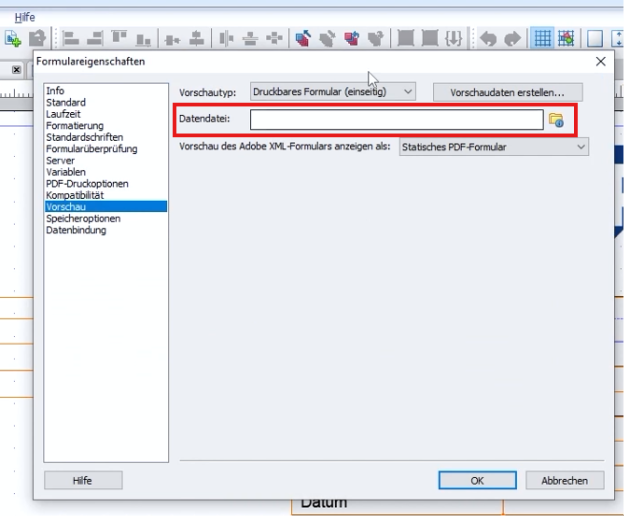
preview
The LCD allows adjustments in display mode. These CANNOT be saved!
So before working on an Adobe form, make sure that you are in “change mode” of the SFP transaction.
The interface is a standalone object with a unique name. It can be used multiple times and represents the mapping of application data—for example, from a print program—to the form.
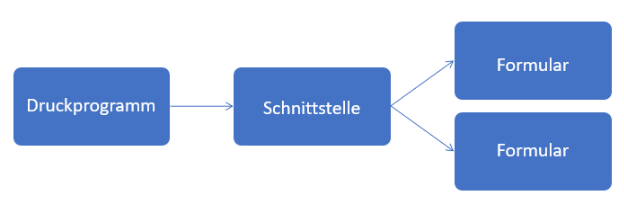
Structure
The following interface types are available:
- ABAP Dictionary-based interface
- XML Schema-based interface
- Smart Forms compatible interface
The most commonly used interface type is the “ABAP Dictionary-based” interface.
The interface consists of three specific areas:
-
Form interface
With the sub-areas: Import, Export, Exceptions -
Global definitions
For defining variables to store data in addition to the data from the form interface. -
Initialization
Option to read additional data in the form. The code should be kept short and concise. The editor has some limitations here, such as no forward navigation and no pretty printer.
Move the business logic into a class that is called here.
To keep the form-printing logic clear and manageable, decide before each implementation whether the required code belongs in the calling print program or in the form interface. This decision also depends on whether you use an SAP standard print program or a custom print program.
As with Smart Forms, Adobe Forms also require a function module generated by the SAP system in order to output the form. Since the name of this function module varies from system to system—just as it does with Smart Forms—the function module FP_FUNCTION_MODULE_NAME must be used to determine the correct name of the function module at runtime.
Basically, the generated function module has the same import and export parameters as the form interface (SFP), and the context objects are also included.
You can also enter the debugging of an Adobe form by setting a breakpoint in the generated function module.
Adobe Forms forms can be versioned using transaction SFP. This can be done manually or is done automatically as soon as a transport is created from the development system to another SAP system.
An Adobe form can be translated directly in transaction SFP (Menu: Goto > Translation) or using transaction SE63 (Menu: ABAP Objects > Other Long Texts > FS Forms and Styles > PDFB PDF-based Forms).
The SAP standard system provides various test programs and test forms. These begin with
„FP_TEST*“.
| Transaction | Description |
|---|---|
| SFP | Adobe Form Builder for Forms and Form Interfaces |
SAP S/4HANA Forms (2015 S/4HANA)
The basis is Adobe forms with gateway interfaces, the data of which is obtained using gateway services (i.e. no classic printing programs). Maintenance is carried out with Fiori apps and therefore “SAP S/4HANA Forms” are public cloud-capable.
The layout is also designed using LiveCycle Designer, but as a standalone application. It is important to note that the edited objects must be manually added to transport requests (using Fiori App ID F1589) and that there is no automatic object lock.
Just like “SAP Interactive Forms by Adobe,” SAP S/4HANA Forms require an Adobe Document Service (ADS -> SAP Forms Service by Adobe).
It should be noted here that customer-specific conditions can only be mapped to a limited extent.
This form technology is only possible in conjunction with the S/4HANA Output Control output solution.
- local editing of the layout / form -> therefore the team must coordinate!
- no automatic transport connection -> Remember that you have to manually search for all objects and include them in a transport.
| App ID | Description |
|---|---|
| F1434 | Maintain form templates |
| F2894 | Manage texts |
| F2761 | Manage logos |
| F1589 | Include objects in transports |
In order to be able to find these Fiori apps, the catalog ID SAP_BASIS_TCR_T must be assigned to the logged in user via a role (transaction PFCG).
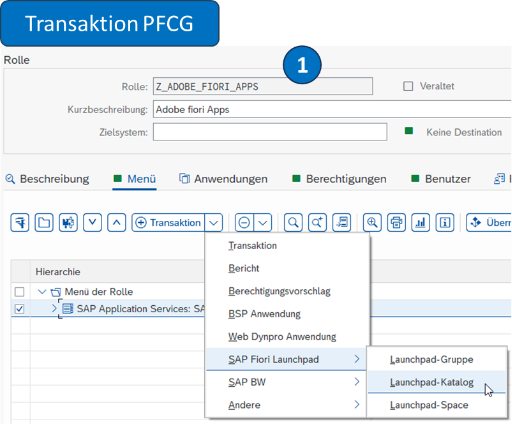
Transaction PFCG
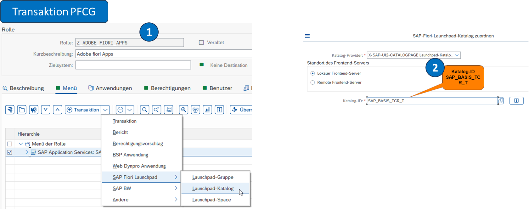
Catalog assignment
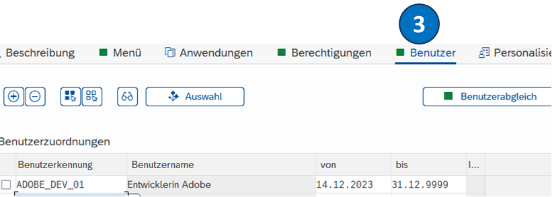
User assignment
Adobe Fragments
This involves the reuse of master form templates. This allows outputs to be assembled from different parts. A distinction is made between the following two parts:
-
Master form
Head and foot area
Determination by Customizing depending on organizational levels such as company code -
Content form
e.g. invoice or order
Determination by BRF+ depending on the output type (e.g. order)
Important fragments include:
- SOMU_FORM_MASTER_A4
- SOMU_FORM_MASTER_LETTER
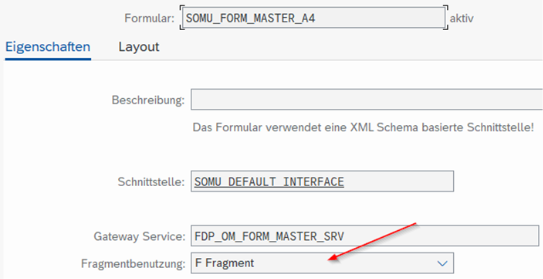
Display in the SAP GUI
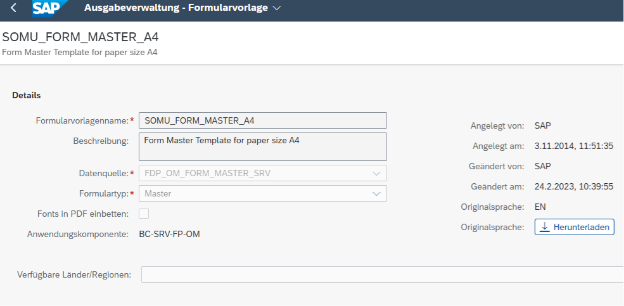
Displayed in Fiori
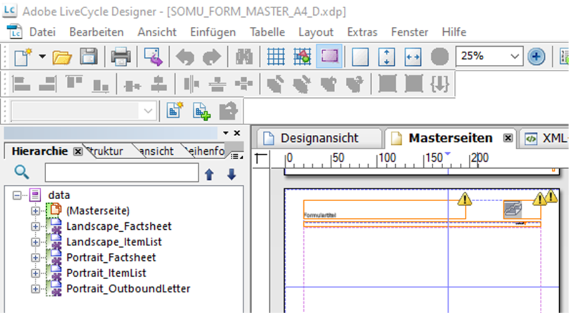
Adobe Fragments can only be used in conjunction with Output Control
Conclusion
SAP generally recommends using SAP Interactive Forms by Adobe for new forms. This is future-proof because SAPscript and SmartForms are no longer being further developed by SAP itself.
Companies that already have many Smart Forms in use are advised to continue using them, but to implement new developments using SAP Interactive Forms by Adobe.
The decision regarding which technology to use for new form development should not be based on which technology is currently used for existing forms. Above all, it is im- portant to consider maintainability and future-proofing, as well as how your company plans to strategically align its system landscape and technology in the future.
If you look at the existing system landscapes, the following recommendation emerges.
| System Landscape | Recommended Technology |
|---|---|
| SAP ECC / S/4HANA On-Premise | SAP Interactive Forms by Adobe |
| S/4HANA Cloud (Public / Private Edition) | SAP Interactive Forms by Adobe / SAP S/4HANA Forms (Cloud-Integration) |
| Legacy system with many Smart Forms | Continue to use Smart Forms, implement new developments with SAP Interactive Forms by Adobe |
| Legacy system with lots of SAPscript | Continue to use SAPscript, implement new developments with SAP Interactive Forms by Adobe |